

Azure Batch and Nextflow Integration Guide

Why Running Nextflow on Azure Batch Is Harder Than It Should Be
Nextflow Azure integration lets you run scalable, containerized bioinformatics pipelines on Microsoft’s managed Azure Batch compute service — without building or maintaining your own HPC infrastructure.
Here is a quick overview of how it works:
| Step | What You Do |
|---|---|
| 1. Set up accounts | Create an Azure Batch account and Azure Storage account in the same region |
| 2. Configure Nextflow | Set process.executor = 'azurebatch' and workDir = 'az:// |
| 3. Authenticate | Use managed identities, service principals, or access keys |
| 4. Manage compute | Let Nextflow auto-create and scale VM pools — or configure named pools manually |
| 5. Run your pipeline | Execute with nextflow run and Azure Batch handles the rest |
Azure Batch has been available since 2015, but Nextflow’s native support only arrived in February 2021. Since then, it has become a go-to option for research teams running data-intensive genomics workflows at scale in the cloud — from RNA-seq analysis to large cohort studies.
The appeal is real: Azure Batch can automatically scale from a single VM up to dozens of nodes based on your pipeline’s demand, and Nextflow abstracts away most of the infrastructure complexity. But getting the configuration right — authentication, pool setup, storage paths, quotas — still trips up a lot of teams the first time.
This guide walks you through every step, from creating your first Azure Batch account to running production pipelines with auto-scaling pools.
I’m Maria Chatzou Dunford, CEO and Co-founder of Lifebit and a long-time contributor to the Nextflow framework, where I’ve worked directly on enabling scalable genomics workflows across cloud environments including Nextflow Azure integrations. The steps below reflect hard-won lessons from real production deployments — not just documentation.
Explore more about nextflow azure:
Setting Up Your Nextflow Azure Environment
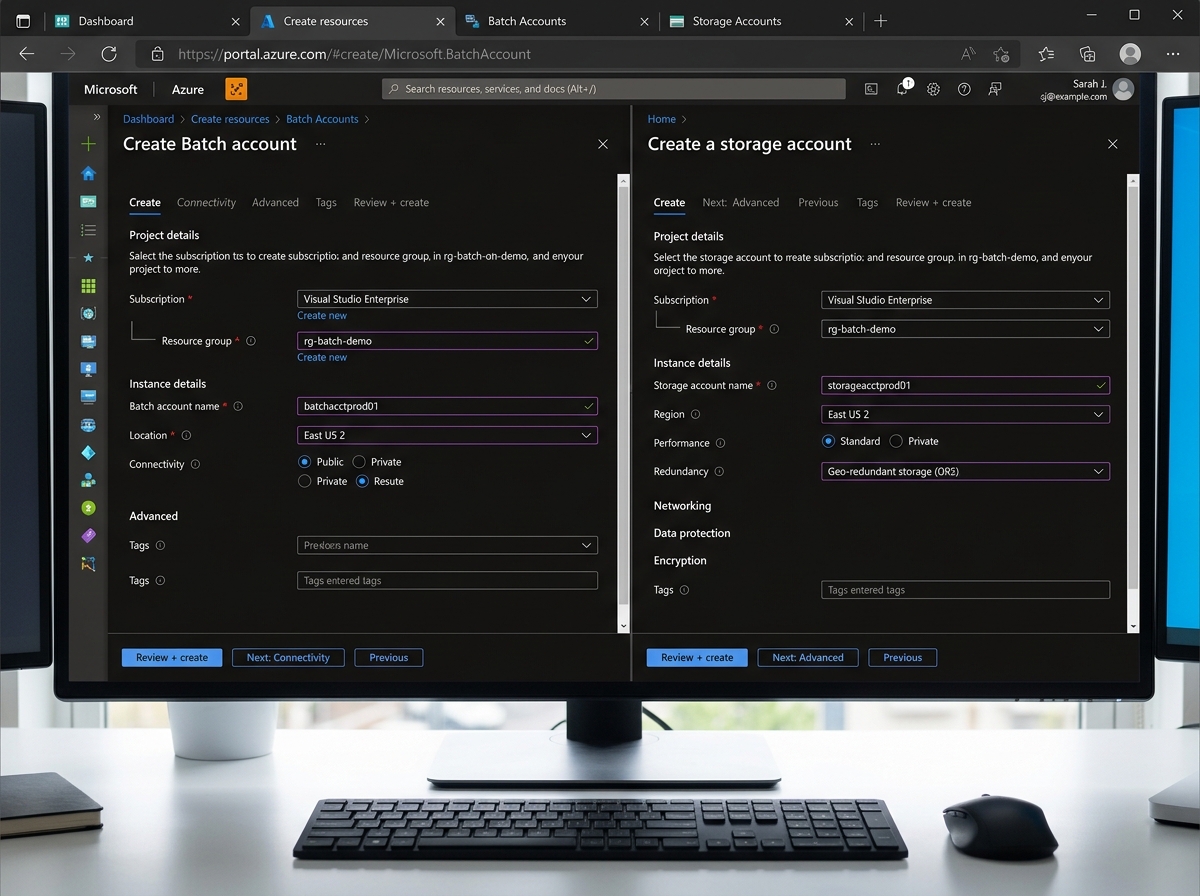
Before we dive into the code, we need to lay the groundwork in the Azure Portal. Think of Azure Batch as your “engine” and Azure Storage as your “fuel tank.” For a smooth ride, they both need to be in the same geographic region (like eastus or westeurope) to minimize latency and avoid those pesky cross-region data transfer costs.
Prerequisites for Nextflow Azure Integration
To get started with nextflow azure, you don’t need much, but what you do need is non-negotiable. Nextflow is a POSIX-compatible tool, meaning it loves Linux and macOS.
If you are a Windows user, don’t worry—you aren’t left out in the cold. You can use the WSL for Windows users (Windows Subsystem for Linux) to create a compatible environment. We recommend an Ubuntu 18.04 or later distribution.
The core requirements are:
- Java: Version 8 to 15 (Java 11 is usually the sweet spot).
- Bash: Version 3.2 or later.
- Nextflow: Version 21.04.0 or later is required for stable Azure support.
- Azure CLI: Useful for managing resources from your terminal.
You can follow the standard installation instructions by running:
curl -s https://get.nextflow.io | bash
Creating Batch and Storage Accounts
First, we need a Batch Account. This is the management entity for your compute resources. When you create it, Azure might ask about the “pool allocation mode.” For most nextflow azure setups, the default “Batch service” mode is what you want.
Next, you need an Azure Storage setup. Specifically, you need a General-purpose v2 storage account. Inside this account, create a Blob container (let’s call it nextflow-data).
Pro Tip: For pipeline scratch data, use Locally-redundant storage (LRS). It is the most cost-effective option and perfectly fine for temporary work directories.
Once created, make sure to grab your:
- Batch Account Name and Primary Access Key.
- Storage Account Name and Primary Access Key (or a SAS token).
Keep an eye on batch services quotas and limits. By default, Azure Batch limits the number of cores you can use. If your pipeline suddenly stops scaling, it’s likely you’ve hit a quota. You can request an increase in quota directly through the Azure Portal support center.
Configuring Authentication and Security
Security is where things often get “interesting.” You have three main ways to tell Azure that Nextflow has permission to use your resources.
| Method | Security Level | Best Use Case |
|---|---|---|
| Managed Identities | High | Running Nextflow from an Azure VM (Head Node) |
| Service Principals | Medium | Automation and CI/CD pipelines |
| Access Keys | Low | Quick testing (not recommended for production) |
We always recommend using Managed identity whenever possible because it eliminates the need to manage (and potentially leak) secrets.
Implementing Managed Identities for Secure Access
If you are running Nextflow on an Azure VM, you can enable a system-assigned managed identity setup. This gives the VM itself an identity in Microsoft Entra ID (formerly Azure AD).
You then use Azure documentation on roles to assign that identity the “Contributor” role on the Batch account and “Storage Blob Data Contributor” on the Storage account. This is “keyless” authentication—Nextflow just “knows” it has permission.
Service Principals and Access Keys
If you aren’t running on an Azure VM, you’ll likely use a Service Principal. This involves creating an “App Registration” in Entra ID to get a Client ID and a Client Secret.
To Register a Microsoft Entra app, follow the portal instructions and add the credentials to your nextflow.config. Just remember: credentials expire! Set a reminder for credential rotation to avoid your pipelines failing unexpectedly a year from now.
Mastering the Nextflow Azure Batch Executor
This is the heart of the integration. When Nextflow sees that you’ve requested the azurebatch executor, it automatically pulls the GitHub nf-azure plugin. This plugin handles all the heavy lifting—talking to the Azure Batch API, staging files, and monitoring task progress.
Specifying Work Directories with az:// Syntax
In a local setup, your workDir is a folder on your hard drive. In nextflow azure, your work directory lives in the cloud. You specify this using the az:// URI scheme.
Example:
workDir = 'az://my-container/work'
Nextflow uses a component called FilePorter to move data between your head node and the compute nodes. It also employs a TaskPollingMonitor that checks the status of your Azure Batch jobs every 10 seconds by default. This ensures you aren’t waiting too long for the next task to start. Check the Azure Blob Storage documentation for more on how data is structured in these containers.
Auto-scaling and Pool Management
One of the coolest features of nextflow azure is Auto-pools. Instead of you manually creating a cluster of VMs, Nextflow can do it for you.
- autoPoolMode: When set to
true, Nextflow creates a pool specifically for your job and deletes it when finished. - allowPoolCreation: Gives Nextflow permission to spin up new hardware.
- maxVmCount: Limits how high you scale (the default is 10, but nf-core configs often bump this to 12).
If you want to save up to 90% on compute costs, consider using Spot VMs with Batch. These are spare Azure capacity sold at a discount. The catch? Azure can take them back with 30 seconds’ notice. Nextflow handles this by automatically resubmitting any tasks that were “preempted.”
For more on choosing the right hardware, see the Azure Batch VM sizes guide. The default is usually Standard_D4_v3 if you don’t specify anything.
Advanced Optimization and nf-core Integration
For production-grade science, we rarely write everything from scratch. We use nf-core, a community-curated set of high-quality pipelines.
Running nf-core Pipelines on Azure
The nf-core community has already done the hard work of optimizing for Azure. By using the -profile azurebatch flag, you tap into a pre-configured setup. This profile typically defaults to Standard_E*d_v5 VM types, which are optimized for data-heavy workloads common in genomics.
You can See config file on GitHub to see exactly how they tune the parameters. These nf-core community resources are invaluable for ensuring your resource requests (CPUs, memory) are accurate, preventing “task packing” issues where too many tasks try to squeeze onto one VM.
Hybrid Workflows and Head Nodes
A common question is: “Where should I run the main Nextflow command?”
While you can run it from your laptop, it’s a bad idea for long pipelines. If your laptop goes to sleep or loses Wi-Fi, the whole pipeline dies. Instead, deploy a small Azure VM as a Head Node. This keeps all execution within the Azure backbone.
You can even run Hybrid Workflows. For example, you might run a small “setup” task locally on the head node and offload the “heavy” analysis tasks to Azure Batch. You do this by labeling your processes and assigning different executors in your config.
Check out the Nextflow GitHub repo for a simple “hello world” or the RNA Seq pipeline example to see a real-world scenario in action.
Frequently Asked Questions about Nextflow Azure
How do I monitor Azure Batch jobs?
Monitoring happens at two levels. First, the nextflow.log file on your head node gives you the high-level view. If a task fails, Nextflow will tell you which Azure Batch job ID was responsible.
Second, you can use the Azure Portal. Navigate to your Batch account, click on “Jobs,” and you can see the individual tasks, their exit codes, and even “Grepping” for details in the stdout/stderr files. For more on advanced logging, see the Nextflow documentation on logging.
Can I use Azure Files for shared storage?
Yes! While Blob storage is great for most things, some tools require a “real” file system. Azure Files documentation describes this serverless file-sharing service. The nf-azure plugin allows you to mount these shares directly onto your compute nodes. See the Nextflow documentation on Azure Files for the exact mounting syntax.
What is the default VM type for Nextflow?
If you don’t specify a VM type, Nextflow defaults to Standard_D4_v3. However, for modern bioinformatics, many users prefer the Standard_D8s_v3 or the E-series for more memory. Always check the Azure VM Size documentation to match your pipeline’s requirements to the right instance.
Conclusion
Integrating nextflow azure is a powerful way to bring massive scale to your research. By offloading the “heavy lifting” to Azure Batch and leveraging the simplicity of Nextflow, we can focus on the science rather than the server maintenance.
At Lifebit, we specialize in making these complex cloud integrations seamless. Our platform provides a Trusted Research Environment Azure that handles the security, federation, and data harmonization for you. We understand the Nextflow cloud challenges that teams face—from cost overruns to configuration headaches—and we’ve built our technology to solve them.
Ready to take your pipelines to the next level? You can Accelerate Nextflow with nf-copilot and see how our federated AI platform can transform your research efficiency. Let’s build something incredible together.